
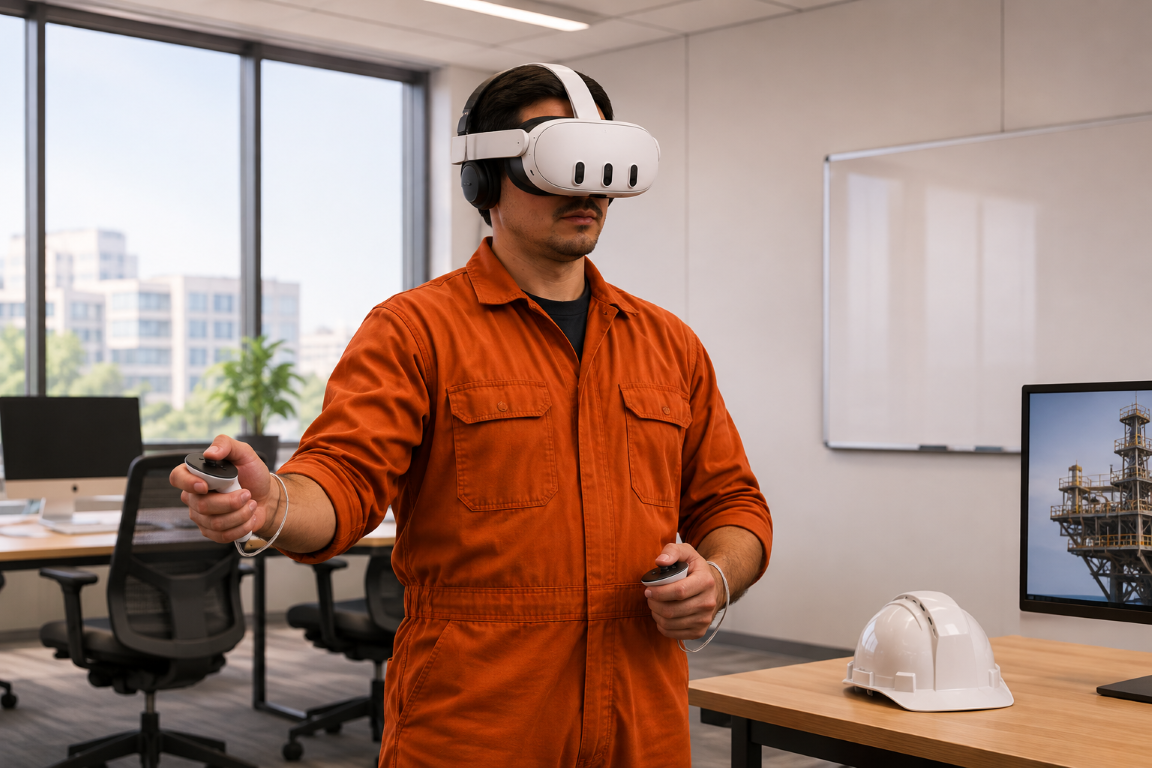
Training crews for a land rig or an offshore platform is hard to do from slides alone, and a seat on a live site is costly and tightly scheduled. DevWise Visual Space lets teams work together in a virtual environment with photorealistic 3D models. Crews can practice onboarding, safety drills, and maintenance procedures on a desktop or in VR before they go to a live site.
The usual options are a classroom deck or a tightly scheduled visit to a live asset. Both have a place. Neither makes it easy to walk a desert land rig, repeat a safety drill on an offshore deck, or study an assembly until the steps are clear. Visual Space, DevWise's VR collaboration platform, gives operations, training, and HSE teams a third option: photorealistic 3D models that people can share, annotate, and practice on, from a desktop or a headset.
What Visual Space Is
Visual Space is DevWise's platform for teams that need to collaborate in a virtual environment and interact with photorealistic 3D models under different scenarios. People use it for training, and also for engineering, maintenance, marketing, and design. You can run it on a desktop or in VR with an Oculus or Meta Quest headset, so a trainer at a workstation and a trainee in a headset can work from the same model.
A Visual Space training session can include many people at once, or people joining at different times. The host does not need to be online for an async session. While people are together, they can use integrated audio conferencing, keep their own point of view or follow the presenter, and work privately before they share. Changes to models, notes, measurements, pictures, audio notes, surveys, and dashboard notes can be seen by everyone in the session.
Train on a Land Rig or an Offshore Platform
A land rig model is often the clearest place to start. In a first-person walkaround of a desert drilling rig, a trainee can move past pipe racks and along walkways, then study the BOP stack, top drive, drawworks, and rotary table before they ever stand next to the real equipment. That is useful for onboarding and for refreshing people who know the theory but have had little time on the equipment.
An offshore platform model works the same way on a deck: piping, stairs, a crane, and a BOP assembly, with enough layout detail to practice how you move and where you put your hands. Scenario management lets you switch the environment, for example from indoor to outdoor or to an ocean setting, so the same asset can support more than one use case. Trainers can pin text and audio notes for the next crew, open assembly info panels, take measurements, and keep a screenshot gallery of what the team should notice.
Those two settings, a land rig and an offshore platform, are the core of how we talk about training in hazardous or expensive environments. The same tools then support assembly training, safety drills, and maintenance procedures, which we cover below.
How Visual Space Compares to Traditional Training
The comparison is not virtual instead of real. It is whether people can practice often enough, with enough detail, before they travel or before a window opens on a live asset. The table below sets common training needs against classroom or on-site training, Visual Space on a desktop, and Visual Space in VR.
In each row, the live site remains the place where work is done. Visual Space is the place where people can walk the asset, repeat a procedure, and leave notes for the next session.
Onboarding, Safety Drills, and Maintenance
Onboarding is easier to schedule when a new hire can walk the rig or the platform in Visual Space, follow a presenter in Presentation Mode, or keep their own point of view and ask questions as they go. Presentation Mode disables design tools for everyone but the presenter, which keeps a structured walkthrough from turning into an editing session.
Safety drills are hard to repeat on a live deck. In Visual Space, a trainer can switch scenarios to simulate different environments and use cases, then run the same drill again. Maintenance training can follow a procedure on the model, with measurements and notes attached to the equipment, and with generative AI that lets people ask questions about 3D models in natural language. Training data and documents stay on the client's private infrastructure or in a private cloud. They are not uploaded to the public internet.
Shared Notes, Presenter Mode, and Assembly Training
Shared notes are what turn a walkaround into a lesson someone else can reuse. A trainer can leave pinned text and audio notes on a valve, a stair landing, or a BOP assembly, add measurements, and build a screenshot gallery. In a multi-user session, named avatars can work in a synced view or a presenter view, so a group stays on the same component. Private work is still available before someone shares a note or a change with the rest of the team.
For assembly training, an exploded-view parts panel with component callouts helps people see how a piece of equipment comes apart and goes back together. Assembly info panels sit next to the model, so the callout, the measurement, and the part are in one place. That is difficult to do around a physical assembly that cannot be paused or exploded for a class.
One Example: Equipment Operation Training
One way teams use our platform is equipment operation training for an oilfield services company. The goal is a safety-focused VR simulation that lets people practice on the company's own equipment, not a generic scene. A build like this usually starts with converting CAD assets into custom simulation scenes and variants, then working sessions with the client's trainers so the steps match how the work is actually taught.
From there, the scenes can include animated equipment objects, custom avatars, and a login by name or by code. In the headset, a hand-menu interface and pop-up safety warnings keep procedures and hazards visible. Several people can work as active users, with ride-along observers who listen in over audio. A voice assistant can offer warnings or instructions at key moments, alongside step-by-step guides on screen. Mini-game evaluations and an end-of-session survey give trainers a simple way to check understanding. This is one example among many training uses, not a required shape for every Visual Space project.
Models, Photorealism, and Design Review
Photorealism matters because people need to recognize the asset they will see in the field. Visual Space can import and customize models from AutoCAD or from any software that exports FBX, with automatic and manual texture mapping. The same platform supports photorealistic design review, including object placement and material swaps, plus black-tape design review sessions for engineering and design teams. Those uses sit beside training. They are useful when a maintenance or training discussion turns into a design question, or when a marketing or engineering group needs to walk the same model.
What IT and HSE Teams Usually Ask
Visual Space can run in the cloud, on-prem, or fully offline within the client network. That matters when a site has limited connectivity, or when HSE and IT want training data and documents to stay under the company's control. Generative AI questions about the models use that same private data path. If this work sits inside a wider digital transformation effort, we can talk through how the platform fits your environment. You can also review our other services if Visual Space is one part of a larger program.
See Visual Space in a Live Demo
DevWise can set up a live demo of Visual Space for operations, training, HSE, and IT stakeholders. We can walk a land rig, an offshore platform, a collaborative showroom, and a design review, and we can discuss a custom training simulation when you have your own CAD assets and procedures. To schedule a demo, contact our team.


